Interstate '76 Install Guide & FAQ
Local Ditch > Interstate '76 > Install Guide & FAQ
About this FAQ:
This FAQ was originally created to answer some common I '76 questions at Local Ditch Gaming. Since then, it's been updated to help anyone attempting to play I '76 in the modern era. If you find anything in here helpful or useful, please send a link back.
- How can I get Interstate '76/Nitro Pack/Gold Edition?
- What's the easiest way to get this thing running?
- Holy shit, there's a lot on this page. Quick version? (AKA Cliff's or TL/DR)
- I '76 will not install. What should I do?
- How can I get I '76/Nitro/Gold Edition to run on modern Windows?
- Why does the splash screen act like my game isn't installed?
- What's different about the various 3D modes?
- How do I make the jumps? Why do AI cars drive so poorly?
- Why can I only set the resolution to 640x480?
- Why are the colors distorted in the cutscenes
- How do I change the music volume? I'm too old and it's too loud!
- The game keeps asking me to insert the Play CD, but it's already in the drive.
- There's no music!
- When I go to join an online game, no servers show up. What is going on?
- So, is there a way to play this thing online after all?
- When will Activision make another sequel to the Interstate series?
- Any good I '76 websites still around?
How can I get Interstate '76/Nitro Pack/Gold Edition?
The easiest way to get the game is to head over to GOG.com. Sure, it'll cost a few bucks, but it'll be worth it. Unfortunately, even the GOG version will likely need a little work to get the game running at its best.
If you're looking for a sealed box with a CD in it, good luck. Amazon, ebay or another auction site may have one pop up from time to time, but it's pretty rare. If you just need the game CD, the odds are a little better. My recommendation: start with Amazon, then head to ebay.
What's the easiest way to run Interstate '76?
I26 on Github is a reimplementation of Interstate '76 in a modern engine, which eliminates nearly all of the issues with getting this game running. I26 supports Windows, Linux, and Mac. It has gamepad and joystick support. You can run the game in modernized graphics or the old I '76 graphics with true widescreen support and high framerates. Best of all? No physics issues.
My recommendation: Play the game in the 3D-accelerated 1997 mode first. Especially if it's your first time playing I '76, this'll provide a nice cohesiveness with all of the cutscenes. After that, try out the modern graphics.
If you have trouble with I26, download and run i76-everywhere by therealjkvalentine on Github. This is a one-shot installer for most major platforms, plus a few extra goodies like a save editor.
If that doesn't work or you're trying to do something off the beaten path, read on...
Holy shit, there's a lot on this page. Cliffs?
Prior to I26, this game could be a real pain to run correctly on modern computers. If you'd prefer to run the original game for some reason, here's what I want through in the summer of 2026...
Results will largely depend on your hardware, Windows version, and edition of Interstate '76. For reference, I'm running the Interstate '76 Arsenal (aka Gold Edition) from the original CDs in Windows 10 on an Intel i7 920 (yes... even in 2026. I know, I know...) with an AMD RX480.
Here's what has worked the best for me:
- Install the game. (Arsenal/Nitro has a 32-bit installer. It installs fine.)
- Install components of Interstate '76 + Nitro Pack AiO Patch from PCGamingWiki. (I didn't bother with the A3D audio or ANET files included in the patch. Sounds were okay for me and I had no intention of playing online.)
- Set up dgVoodoo2 for Glide mode.
- Set up DDrawCompat for movie and shell issues.
- Set up ogg-winmm for music (I '76 Gold). Set up dxwnd to control music volume (Nitro).
It ain't perfect, but it's a whole heck of a lot better than it was beforehand.
Have specific issues? Read below for various solutions.
I '76 will not install. What should I do?
The original Interstate '76 game used a 16-bit executable for the install process. This made sense in the days of Windows 95. But, time and technology have come a ways in the time since I '76's initial release and most people are now running 64-bit systems that have since dropped support for older 16-bit applications.
Others have suggested that there may be a glitch on some of the game discs that makes installation a little testy, though I've not really seen any evidence of this.
First
If you're running a 32-bit version of Windows, the installer should be able to run. 32-bit versions of Windows still maintain their backwards compatibility with 16-bit applications.
The Interstate '76 Arsenal (aka the one with Nitro Pack in it, too), as well as the GOG version, comes with a 32-bit installer and should install correctly on 32 and 64-bit flavors of Windows. A tip: I'd recommend installing somewhere else than C:\Program Files. Modern Windows adds extra restrictions to the this folder. Even C:\Program Files (x86) should be better.
otvdm/winedvm
If you need a way to fire up the 16-bit installer from the original game disc, try otvdm. (Technically the project is winedvm, but the executable is called otvdm, so that's how you'll hear it colloquially.) Download it and install it. In theory, just run the I '76 installer after that. If that doesn't work, run as an administrator and try dragging and dropping the the setup file from the I '76 CD onto the otvdm executable.
If that doesn't work...
On any 64-bit flavors of Windows, the installer will not run from the original I'76 game discs. There is hope, though. The game data for I '76 isn't compressed on the disk, which means that it can be copied directly from the CD over to your hard drive.
Start off by creating a new folder on your hard disk to hold all of the I '76 files (usually C:\Program Files\Activision\Interstate '76\). Now, throw the I '76 install CD into your computer, open it up, and copy everything except the "AVI", "Demo", and "Direct X" folders and place the data into the newly created I '76 folder.
Next, rename I76MAX.ZIX to I76.ZIX.
Last step: Though I '76 should run just by doing the above, you won't be able to install any patches because Windows won't acknowledge that game has been installed.
To rectify this, modify the registry and add the key HKEY_LOCAL_MACHINE\SOFTWARE\Microsoft\Windows\CurrentVersion\App Paths\I76.exe. In here, add the following strings:
| Name | Type | Data |
|---|---|---|
| (Default) | REG_SZ | C:\Program Files\Activision\Interstate76\I76.exe |
| Path | REG_SZ | C:\Program Files\Activision\Interstate76 |
How can I get I '76/Nitro/Gold Edition to run on modern Windows?
Ok, this is the question. There's a lot of stuff to try. But first, double-click I76.exe from your Interstate '76 directory (C:\Program Files (x86)\Activision\Interstate76\) and see what happens. If you can see the movies and or reach the main menu screen, you've got a good start. If not, try these options below:
DirectDraw Issues
I '76's shell and movies use DirectDraw, no matter what 3D-accelerated options you have set. You may need a DirectDraw wrapper to help here. DDrawCompat works well for me. Drag and drop ddraw.dll into your I '76 folder to install.
Menu Sound Issues
If you're installing off of a disc (not GOG), there are a couple of sounds in the shell that may cause the game to crash in modern Windows. This was more of a problem in XP, but could still cause issues in some setups. If the links to those sound files are changed so that the game doesn't point to them, there will be no crashes. The end result: I '76 runs without having to disable the sound acceleration or use any other bizarre tricks.
Download the fix
I've already done it. Just download the database.mw2 file and unzip it in your I '76 directory (typically: C:\Program Files\Activision\Interstate76).
Do it yourself
To take care of this, open up the database.mw2 file in a hex editor and find the last two "RIFF" extensions. Change them to something else, such as "PIFF" and that should do the trick.
If that doesn't work, try the following
Before you install and run the game, be sure to turn the Windows Sound Hardware Acceleration all the way down. You can do this by going into Control Panel, click the Sound and Audio Devices icon, choosing the Audio tab, and clicking on the "Advanced" button in the Sound Playback category. Once here, choose the Performance tab and drag the top slider, "Hardware acceleration" all the way to the left.
If it still won't start, try this:
First off, make sure you are attempting to run the game in Software mode.
Run the game in compatibility mode:
Create a shortcut to I76.exe or Nitro.exe, right click on the shortcut properties, choose the Compatibility tab and run the game in Windows 98 or Windows 95 mode.
Turn Sound Off Inside the game:
If you can get inside the games shell and you have set your Hardware Acceleration down, but it fails to load a mission, go into the game's settings and turn the Audio Channels down to Off.
Disable any USB Controllers.
Safe Mode:
If none of the above works, restart Windows in Safe Mode and run the game in a window.
Why does the splash screen act like my game isn't installed?
You can use the registry edits above to fix this. Generally though, I think it's best to just skip the splash screen altogether. (I actively avoided using it, even 30 years ago.) So, how do you load I '76 and still pick your favorite 3D mode? Set the launch options.
Create a shortcut to i76.exe or nitro.exe. Head to properties and append the shortcut with one of the following:
| API | Switch |
|---|---|
| Software Full Screen | (default) |
| Software Windowed Mode | -gdi |
| Glide | -glide |
| Direct 3D | -d3d |
| Rendition Vérité | -redline |
| PowerVR/SGL | -powervr |
Your final results should look something like this

What's different about the various 3D modes?


A picture's worth a thousand words, so watch the Interstate '76 render mode comparison video on Youtube.
In general:- Normal/Windowed/Software mode has no hardware acceleration. You can increase the resolution to a max of 1024x768. 8-bit unfiltered textures are used. This is (to me) the "classic" I '76 look. But... it's arguably the ugliest.
- Glide uses the 3dfx hardware-accelerated version of the game. It has updated 16-bit textures. By default, the resolution is locked to 640x480, but can be set higher by using a Glide wrapper. Glide is readily supported so there are several wrappers to choose from.
- Direct 3D uses Microsofts DirectX API for hardware acceleration. It has the 3D-accelerated look, but the textures used by I '76 are inferior to the Glide and Rendition versions. You will see lots of blur.
- Rendition uses the high-quality textures like Glide. Fewer wrappers support it, but may be another option.
- PowerVR wrappers have just recently (as of 2026) started to appear. Compatibility is likely limited (and slow), but it's possible. (I have verified this works with I '76.)
Ok, I have the game running, but I can't hit any jumps and Taurus can't drive to save his life.
In Interstate '76, many components of the game are tied directly to its frame rate. I know this sounds like a horrible idea, but it's actually pretty common. For example, John Carmack's technical wizardry still saw Quake 3 have issues if it ran over 60fps, which were eventually fixed in the browser-based Quake Live. Most console games use a frame rate cap and will time game events from there. Interstate '76 is no different... except that the frame cap is relatively low.
In I '76 running the game over 30 frames per second will cause issues. A few you may experience:
- Jump physics are out of whack and ramps are unjumpable.
- Flamers will not fully extend and do not work correctly.
- Mortar distance is shortened to the point they are suicide weapons.
- AI cars will not travel faster than ~35 mph.
- Enemy cars constantly brake and flutter their front wheels.
- Game events happen too early or too late.
The solution is to lock the frame rate. The magic number? This is debatable. The game physics were built around a 15hz time step. However the I '76 community has generally agreed upon 20 frames per second. I've tested a lot of different options with this and I have to agree that 20fps is a better experience: Go any lower and the frame rate is too rough on modern systems.
I26
If you haven't already, try using I26 as it'll solve almost all problems with running the game.
All-in-One Patch
If you are running a disc-based version of the game, the best starting spot is to use the Interstate '76 + Nitro Pack AiO Patch from PCGamingWiki. Not only will this fix the game physics via the frame rate, but it'll also tackle a host of other problems and bugs, ranging from memory issues, black screens, and random crashes.
This patch is for the Arsenal/Gold Edition of the game. If you're running off of the original discs, you'll need to update to the Gold Edition to use the patch. Get the patch here: Interstate '76 - Downloads.
From my understanding, this patch is already incorporated into the GOG version as of 2019. If you downloaded the game from GOG before that, try redownloading and reinstalling again. If you can make it to the main menu but can't see anything in-game, odds are that you'll need to use a wrapper to fix graphical issues.
dgVoodoo
You can also control the framerate with a glide or Direct3D wrapper. Generally speaking, the Glide version of the game has better textures and is recommended. I'd start with dgVoodoo as it has options to limit the frame rate if needed. A slightly-less-than cinematic 20 frames per second seems to be perfect.
This should also work with GOG versions of the game. If you are using the GOG version, please delete or replace the glide2x.dll files from your I '76 directory.
dgVoodoo Install and Setup Instructions:
- Download dgvooodoo from Downloads - Dege's stuffs or here GitHub: dege-diosg/dgVoodoo2/
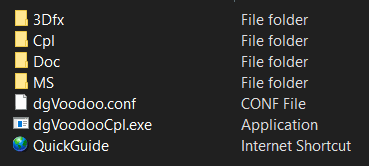
Open the zip and copy dgVoodoo.conf and dgVoodooCpl.exe to your I '76 install folder. This is the GUI and settings file to configure dgVoodoo.
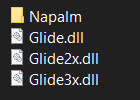
Head to the 3Dfx\x86 subfolder and copy Glide2x.dll to your I '76 install folder. This is the glide wrapper.
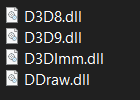
Head to the MS\x86 subfolder and copy DDraw.dll to your I '76 install folder. This is a DirectDraw wrapper for the shell and cutscenes. You can use another DirectDraw wrapper if you prefer.
- Double-click dgVoodooCpl.exe to set its options.
- In General, set the options to your liking. I believe mine are at the default.
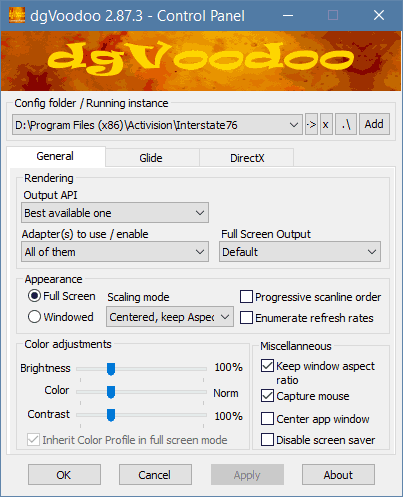
- Head to the Glide tab.
- Set the 3dfx card to Voodoo Graphics. Onboard RAM can be 2 or 4, but may be more stable at two.
- Super important: Set the Texturing memory size /TMU to 2048kb. This will avoid texture corruption when destroy objects.
- If you don't like the bilinear texture filter look, you can change Filtering from App Driven to Force Point Sample.
- Set the resolution to a 4:3 ratio that matches your monitor. For example, I'm running a standard HD 1920x1080 monitor. I '76 will not do proper widescreen — it only stretches the image. So, I'd set my resolution to 1440x1080 to maintain the 4:3 ratio.

- Next: If you're not using another method to limit the framerate, use dgVoodoo. Unfortunately, the option is hidden, so it's not obvious at all. Right-click anywhere and pick "Show all sections of the configuration." This will add several new tabs to the top.
- Click the GeneralExt tab.
- Set the FPS Limit to 20.
If you get a flickering in the corner of the screen after displaying the map or notepad in game, you may want to make a couple of extra tweaks here. You can set the Deframer size. This adds a small black border around the corner of the screen. A deframe size of 3 was perfect on my machine to remove these flashes.

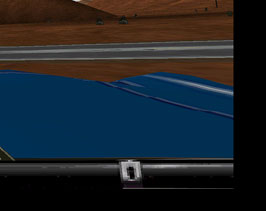
First: notepad and map edges are still visible. Second: Edges are fixed after adjust Deframer settings.Now, that does technically mean the game image doesn't go to the exact top and bottom of your screen. Not necessary, but back in the Glide tab, you can add an extra 6 pixels to your resolution to make up for it. For a standard HD monitor, that would be 1446 x 1086.

- Click Apply. You can try running the game with your options.
- If it doesn't work, change a few things and try again.
- Close and get the funk out when you're finished!


I did all this and the framerate's still choppy!
Restart your computer. Seriously. There's a bug on modern systems where leaving your computer running for a few days will mess up I '76. The AiO patch should fix this, so install it if you haven't already!
Other Options:
- nGlide is another popular choice to wrap the glide version of the game.
- DDrawCompat will wrap the D3D version of the game. Note that the textures are worse in D3D.
- RReady will let you wrap with the rendition/redline flag. There is a trial version at VOGONS. Otherwise, you'll need buy the app on the Microsoft Store.
- Though limited, you can try RetroBridge and run in PowerVR mode. For me, this leads to corrupted menus and videos, but the 3D does run... albeit with issues as this wrapper is early in development (as of 2026).
- Run it in software.
dxwnd
dxwnd is a powerful tool used to solve a variety of issues in getting older games running. You can use it, too, to limit the framerate as well as workaround other issues in I '76. This can be used in conjunction with the wrappers listed above or indepenently of them. This is one of the few ways to limit the frame rate in software mode if you'd prefer to play a version of I '76 prior to the Gold Edition. I particularly like it for handling the music volume.
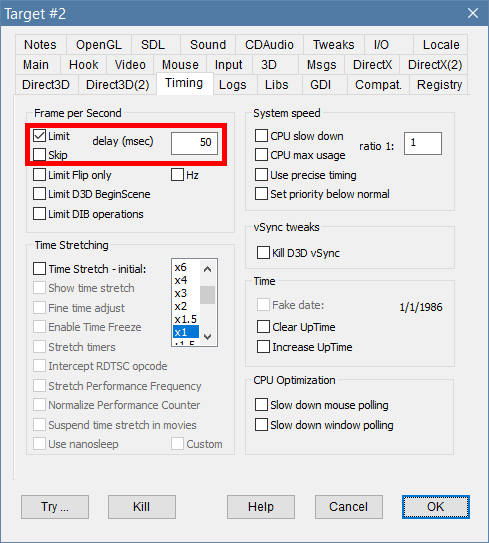
In general, install and run dxwnd. Import the existing I '76 profile. Modify it to your I '76 install directory. Set up any launch options (like -glide). In Timings, set it to 50 (1000ms/50 = 20fps). If you have sound and music issues, dxwnd may be able to help with those, too.
If you prefer the step-by-step:
- Download dxwnd at Sourceforge.
- Extract the contents of the download into the folder of your choosing.
- Click dxwnd.exe to start up the program.
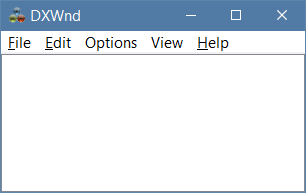
- Right-click in the white space and pick Import.
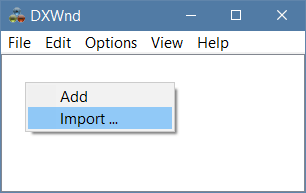
- Browse to the Exports folder of your dxwnd install and select either Interstate '76.dxw or Interstate '76 Nitro Pack.dxw, depending on which game you're trying to run.

- This will create a profile for Interstate '76 using some recommended tweaks and settings. Unfortunately, this likely will not yet point to your I '76 install directly. Right-click the profile and choose Modify.
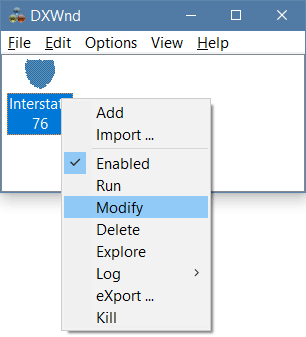
- Aah, the fun begins. While dxwnd is awesome, the user interface... leaves a little to be desired, to put it mildly. Change the path to your I76.exe (or nitro.exe) file location.
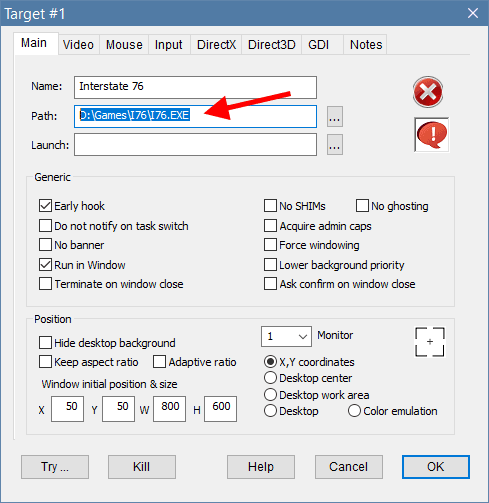
- Okay that screen, then double-click your I '76 icon in dxwnd. Does the game run? Awesome! Go install dgvoodoo2 and/or ddrawcompat and get gaming.
- To activate glide mode, head to the Hook tab and set your command variables like this:
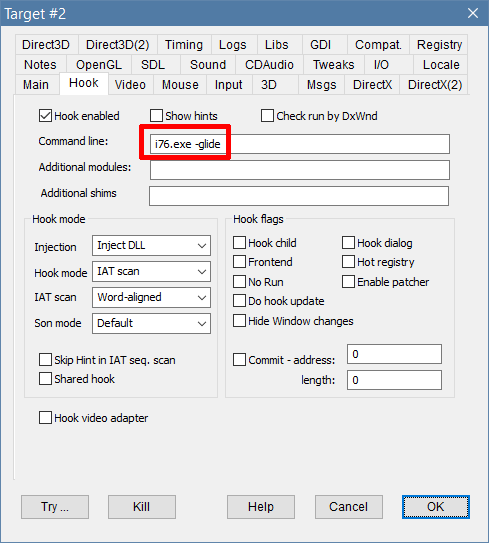
Still having problems? There's more to try:
- Go to Options > Extended Mode to get a crapton of extra settings.
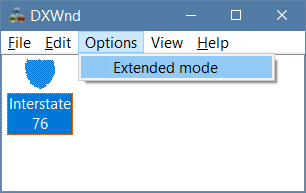
- Right-click and head back to Modify...
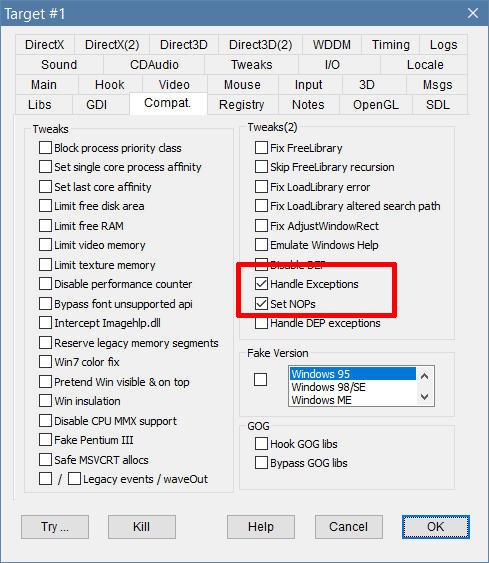
If you're having issues with the game crashing before it starts, head to Compat and enable Handle Exceptions and Set NOPs. Particularly with CD-installs of the original (V1.0) I '76, there's an outdated CPU-check that will prevent the game from launching.
By the way, unless you need that version for some reason (nostalgia?), upgrade to the Gold Edition, then install the uCyborg AiO patch to bypass this CPU-check issue altogether.
(Also, I randomly had issues where the original I '76 would crash before it started, even though it had worked before. The unlikely solution? I had to reset the shader cache using Disk Cleanup. Then, Handle Exceptions and Set NOPs options worked correctly again.)
- For music issues, head to the CDAudio Tab. There are lots of choices here. In general, you can potentially run audio from the CD (Nitro works for me, I '76 doesn't). You can use ripped audio files stored in a Music folder in your I '76 install directory.
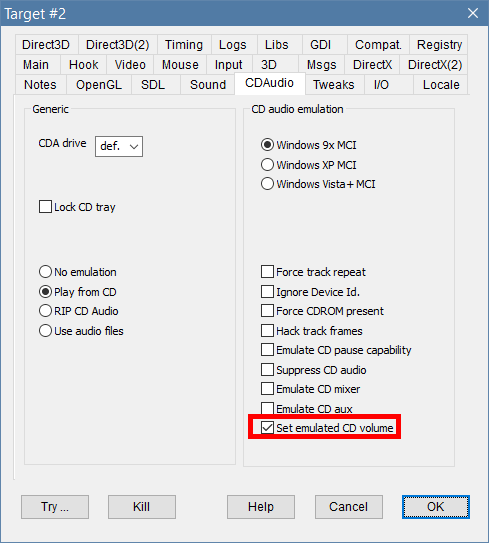
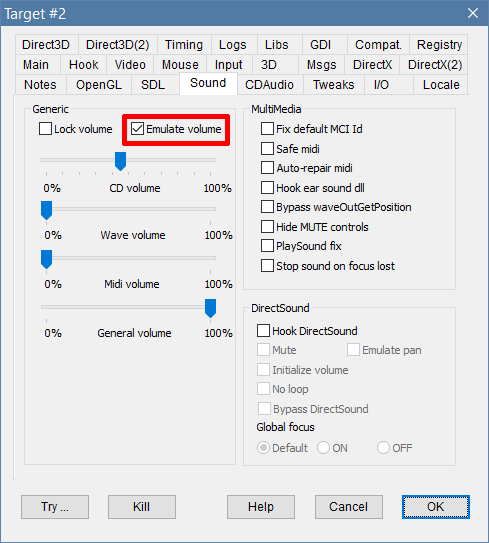
- If you have only volume issues, you can emulate the CD volume here, then head to Sound, emulate the volume, and set as needed.
- If the CD isn't being detected, you can make adjustments in the I/O tab.
- For those who are running the original I '76 from a CD and using Software mode, the game's frame rate will be too high. To tame it down, head to the Timing tab. Enable Limit and set the delay to 50. (The delay is based in microseconds, so 1000/50=20fps, the recommended framerate.) If you're using dgvoodoo, you can also control the frame rate there instead of here in dxwnd.
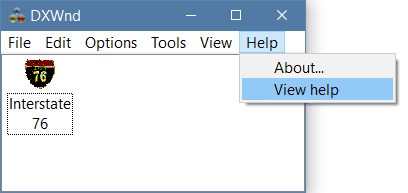
- I know it gets a little vague here at the end. dxwnd is an awesome beast of a program, but there's a lot. Check the help files and do some digging if you need to go deeper!
Even more...
Many places have suggested throttling your CPU. I've suggested this in past Q&As as well, but this really isn't the best way to go about it. Some CPU throttling programs give your computer "busy" work and basically just overload your processor, causing needless heat and potential damage. Others work by limiting power, which is not nearly as bad. The end result, though, is that the CPU struggles with the game and becomes the limiting item for the frames that are generated, overall lowering the frames per second.Instead though, it's best to cut straight to the source and limit the fps directly. If you're running an NVIDIA card, try this:
Head to the NVIDIA Control Panel and go to "Manage 3D Settings." Head to the Program Settings tab and click add. Browse to your i76.exe or nitro.exe file. In the list below, look for max frame rate and set it to 20.
For AMD cards, enter the Adrenalin drivers. Head to the Gaming tab. Under Advanced, look for Frame Rate Target Control and set it to 20.

Below is old, eventually delete
Use Adaptive V-sync
In the NVIDIA control panel, create a custom profile for Interstate '76. At the bottom, set the Vertical Sync to "Adaptive (half refresh rate)." Most of today's monitors operate at 60hz. Half of that will be 30hz, analagous with 30fps, and these issues will go away.
Another approach
If you're running a monitor with a faster refresh rate, like a 120hz monitor, you'll still have issues. Although NVIDIA doesn't advertise it, or even make it accessible with their normal drivers, it's possible to set the frame rate with a driver setting. To do it, you'll need to download the NVIDIA Inspector (//www.guru3d.com/files_details/nvidia_inspector_download.html). With it, you'll be able to modify the I'76 game profile and directly set its FPS cap. My recommendation: 30fps or 29fps. I've had better luck with 30.
Why can I only set the resolution to 640x480?
The software version will allow you to play in up to 1024x768, but if you play I '76 Gold Edition in Direct3D, it's locked at 640x480. If you want higher resolutions, you could switch back to software mode, or...
If you're adventurous, try using a glide wrapper for higher resolutions. This will let you emulate the 3dfx cards of the day, allowing I '76 to run in 3D-accelerated mode, as well as giving the options to run in a higher resolution. Another advantage is that the textures in the Glide-enhanced I '76 are clearer than its Direct3D counterparts.
Glide Wrapper and dgVoodoo are two popular choices. Mileage may vary, so if one isn't working as well as you'd like, try out the other. Be sure to make sure that the i76.exe, nitro.exe, and splash.exe files are to use the wrappers settings.
After installing your wrapper of choice, create a shortcut to I'76 and append it with "-glide" (no quotes). This will signal I '76 to use the glide-enhanced version of the game. Originally, the Gold Edition/Arsenal asked you to choose with flavor of 3D acceleration you wanted to run. This may not show up on modern systems.
If you experience texture corruption, where (typically) after explosions, all of the textures get scrambled, check the option to limit texture memory to 2mb in your wrapper of choice. Alternatively, just hit the "Esc" key twice during the game. Good luck.
Personally, I'm using Glide Wrapper. dgVoodoo is causing tearing issues for me on a Windows 7 box with Geforce 560TI.
The game is looking great, but why are the colors in the cutscenes distorted?
This seems to be an issue tied with monitor bit-depth and resolution settings. The solutions:
Wrap It
Use another wrapper. Dumb, but it works for me.
Use a DirectDraw wrapper. The shell for I '76 uses DirectDraw, even if you're running a 3D-accelerated version of the game. dgVoodoo includes a direct draw wrapper, so start with it first. Copy the ddraw.dll from the dgVoodoo zip file to your I '76 install directory and start the game. For me, the shell is a little choppy with dgVoodoo.
As usual, mileage may vary wrappers, but I've personally had better luck with DDrawCompat. Now, I know it sounds a little weird to use two wrappers simultaneously, but it's working for me. DDrawCompat handles the movies and the shell while dgVoodoo handles the 3D game. With DDrawCompat running, you can adjust the movies to stay in their native 4:3 aspect ratio and eliminate color issues. Download DDraw Compat here, then copy the ddraw.dll file to your I '76 directory. Once in the game shell, hold <shift> and F11 to enter its setup screen. Set the resolution to match your monitor, set the aspect ratio to 4:3, then maybe set the frame rate to 20fps for good measure..
Older and other fixes below:
Open display properties
Seriously. Right-click on your Windows 7/8 desktop, go to "Screen Resolution" and leave the window open before you launch I '76. I have no idea why this works, but that will sometimes solve the problem. It works for me some days, yet it doesn't on others. It's quick and easy, so start with it first.
Batch it
The other method involves killing the Windows Explorer process before running Nitro Pack. This seems to resolve the issue, too. Of course, doing so will shut down much of the Windows user interface, so we'll want it back after the game ends. Instead of doing all of this manually, it's easiest to just throw it into a batch file. Once you've got the batch file built, then you'll use it to launch the game.
Create a new text file and save it in the I '76 install folder. Make sure it's extenstion is ".bat" with no quotes. If I'm creating a batch file for the Nitro Pack, I might call it "nitro_start.bat" or something along those lines.
For Nitro Pack with Glide enabled, place the following contents in the batch file:
taskkill /f /IM explorer.exe
start /w nitro.exe -glide
start explorer.exe
Congrats, now use this new batch file to launch the game from now on.
Thanks to the I'76 GOG forum experts for the advice on this one.
How do I change the music volume?
Longs story short: Modern Windows does not control volume on disc-based media (CD/DVD) the same way 90's-era Windows did. Part of this is the CD hardware itself and part of it is to changes in windows media playback.
Good news: This can be fixed. Maybe bad news: There's yet another compatibility program at play. dxwnd is a multi-purpose toolkit to get old Windows programs running. Fortunately, it's got I '76 profiles included and it you can set it to adjust the CD volume.
See the directions on installing and setting up dxwnd above.
After the basic setup, head to the CDAudio Tab. There are lots of choices here. In general, you can potentially run audio from the CD (Nitro works for me, I '76 doesn't). You can use ripped audio files stored in a Music folder in your I '76 install directory.
If you have only volume issues, you can emulate the CD volume here, then head to Sound, emulate the volume, and set as needed.
The game keeps asking me to insert the Play CD, but it's already in the drive.
I '76 only checks the lowest labeled CD drive. If you have multiple drives, a virtual drive, an ISO, etc. that has a drive letter lower than your I '76 CD's drive, you'll need to adjust the drive letters in Windows Disk Management.
Add directions
Also, you can use the I/O tab in dxwnd for this.
There's no music!
Without the music, Interstate '76 is not the same game! I'd use ogg-winmm to fix this. Weirdly enough, Nitro Pack works fine for me with AiO patch. However, installing the AiO patch kills music for me in the disc-based version of the Interstate '76 Arsenal/Gold Edition. To get the music back, use ogg-winmm . For GOG users, I belove this approach will work, too.
ogg-winmm
Download ogg-winmm from here. It's a pretty simple install: Drag and drop the two winmm files into your I '76 folder. As far as getting the game music set up, it needs to be in ogg format. I used dxwnd to rip the game, then converted the files. You could do something similar... or just download it from Local Ditch Gaming since I've already done the work. Extract this zip into your I '76 folder and you're good to go. It'll add the Music folder with correctly labeled files for the the I '76 Gold Edition.
dxwnd
Try using dxwnd's virtual CD feature. Sometimes this alone is enough to get the music going. Other options: dxwnd, too, features a play-digital-music-from-folder option. Unfortunately, it didn't work for me when I used the AiO patch, but you may have better luck.
Mount an Iso
Kind of a long approach, but you can track down an iso of the I '76 Gold Edition Disc 2. Mount it in a virtual drive and take it from there.
Add instructions.
How do I stop the music from playing over cutscenes?
This is a problem specific to non-disc versions of the game. When I '76 was released, CD drives didn't play music and access data at the same time. So, when a movie started to play from the disc, the music stopped automatically. Because of that, I '76 isn't programmed to send a stop command to the audio when music plays.
Option 1: Get a disc-based version of I '76.
The "Mount an Iso" trick from above may work, but I've not tested to confirm.
Find a good solution and want to share it? Let me know.
When I go to join an online game, no servers show up. What is going on?
Zed's dead, baby.
Originally, I '76 came set up to use Activision's Anet (Alink, Activelink, Activenet) servers. As the years have gone by, these servers have been shut down. Fortunately, Dan Kegel of Activision has released the source code, meaning anyone can run their own server.
Adding to the issue, I '76's Anet system is unable to connect to other networks when behind a router. Considering the days of dial-up and directly plugging a phone line into your computer are dead, this is a problem.
Shane Peeler has created a fix. If you've already installed the Interstate '76 + Nitro Pack AiO Patch from PCGamingWiki, then you're covered. Alternatively, get the patch from Interstate76.com.
To my knowledge, there's only one Anet servers currently in operation, available at 911.alink.bz911.net.
I '76 games rarely run, but in order to connect to the server, you'll need to type in that server address after patching the game.
For more information on ALink servers, please visit Dan Kegel's Anet page.
So, is there a way to play this thing online after all?
Yes. A group of hardcore I '76ers at Interstate76.com still play the game a couple of nights a week. Visit the site and reach out to them on Discord.
Also, much to my surprise, Kali.net is still up and running and can be used, too.
When will Activision make another sequel to the Interstate series?
The simple answer: They won't. I '76 got some pretty good reviews, but sales weren't anything spectacular; it wasn't another Mechwarrior 2. It did warrant enough to create the Nitro Pack add-on. Unfortunately, Nitro didn't sell well at all, leading to the cancellation of even the patches and bug fixes for that game. I '82 came out, got poor reviews and sold just as badly, pretty much wiping out the possibilities of future Interstate games.
To top it all off, a few years after releasing I '76, Activision exited the game development business altogether, opting to strictly publish games.
Any other good I '76 websites still around?
Peruse Local Ditch Gaming, then check the Interstate '76 links for more.
Last update - 10/18/26